Back to Help

Getting Around the Workspace

Learn the workspace loop so you can find tools, change inputs, and read results fast.

Getting StartedbeginnerPrompt-basedStart here

How the workspace works

The workspace is a system, not just a drawing area.
  • Select something on the Canvas.
  • Change its inputs in the Properties Panel.
  • The system updates the drawing and outputs automatically.

Workspace layout

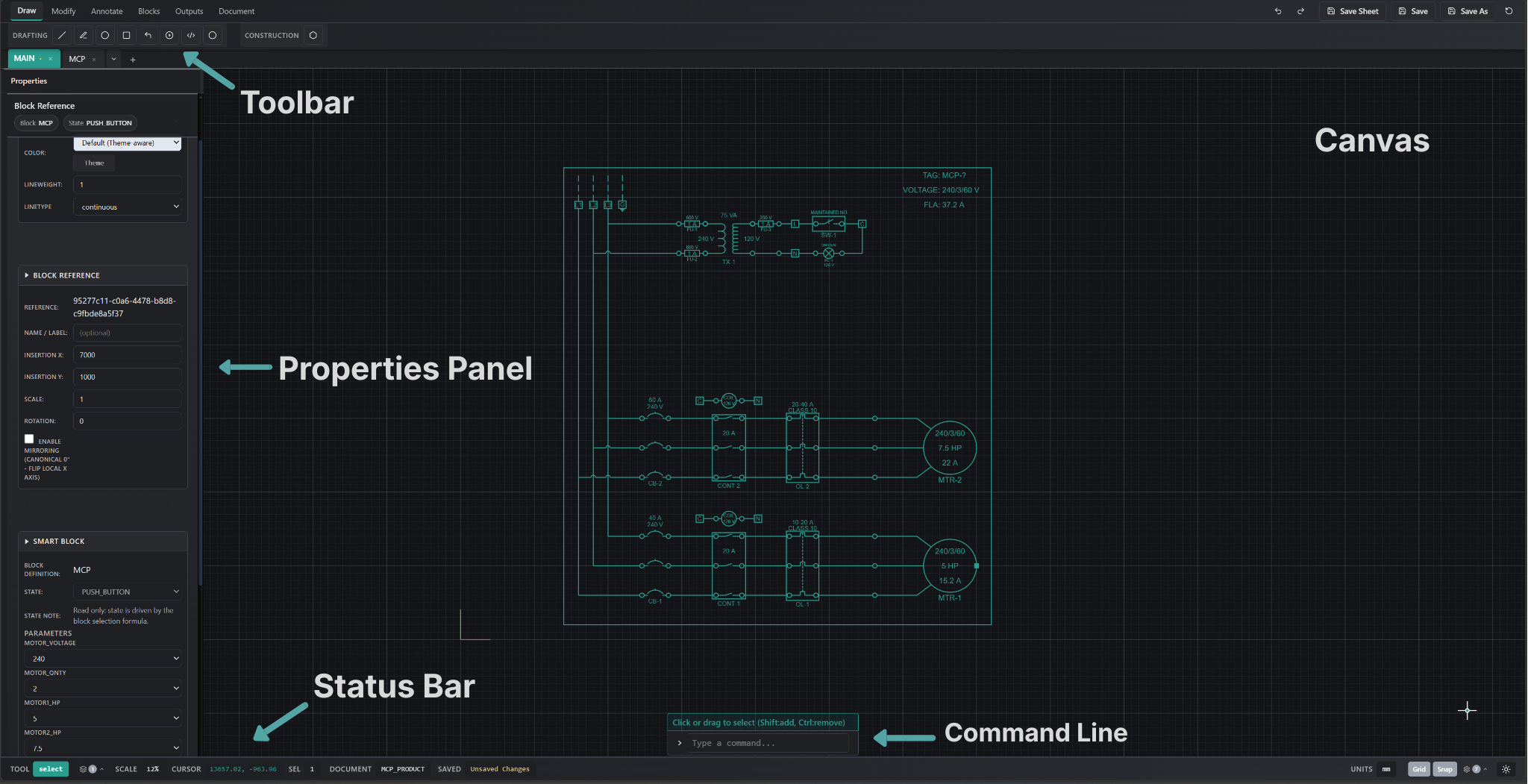
Workspace overview showing canvas, properties panel, toolbar, status bar, and command line

Canvas

  • Displays your drawing
  • Lets you select blocks

Properties Panel

  • Shows inputs for the selected block
  • Change values here

Toolbar

  • Tools for drawing and editing geometry

Outputs

  • Shows generated data like BOMs

Status Bar

  • Shows tool state, cursor info, and project status

Command Line

  • Allows fast command entry and interaction

Common actions

Select something

  • Click a block on the canvas
  • Its inputs appear in the Properties Panel

Change a value

  • Edit a parameter in the Properties Panel
  • The system updates automatically

Build or modify geometry

  • Use toolbar tools to draw and edit

View results

  • Open Outputs to see generated data

Try it now

  1. Open the Control Power Panel.
  2. Click a block on the canvas.
  3. Change a value in the Properties Panel.
  4. Open Outputs to see the result.

Docs

How the workspace fits into the larger LogiDraft model.