Help & User Guide

Use the Start Here section for onboarding. Use the tabs and search below as a reference manual. When you need detail, jump to a section and expand it.

Choose your workflow

Start with manual drafting or jump straight to parametrics. Both paths lead to the same canvas.

Draft Like Normal CAD. Manual drawing, annotation, and editing. Go to Basic Drawing Tools.

Use Parametrics. Blocks, variables, formulas, reuse. Go to Blocks Quick Start or Formulas Quick Start.

Start Here

Get oriented, follow the guided path, and then dive into the full reference when you need depth.

How LogiDraft Thinks

Build the mental model that makes parametric CAD predictable.

Open

Canonical Example

Follow the canonical walkthrough before you dive deeper into the guide.

Open

First Parametric Block

Create a block, wire parameters, and see geometry respond.

Open

How LogiDraft Thinks

Traditional CAD is static: you draw geometry and then manually fix everything when requirements change. LogiDraft is parametric: you define intent, and the drawing regenerates from that intent.

  • Geometry is derived, not manually maintained — parameters drive the result.
  • Parameters can be values or formulas — like Excel, but tied to geometry.
  • Blocks are logic containers, not just symbols — define once, reuse with different inputs.
  • Sheets are outputs — your block logic and parameters are the source of truth.
  • Some edits are intentionally restricted — if geometry is driven by parameters, manual grips may be disabled to protect correctness.

Next: build your first parametric block to see this in practice.

What to Do Next

You've just seen how LogiDraft uses parameters and logic to drive geometry automatically. Now apply the same pattern to your workflow.

Next Step Checklist

  • Identify a repeated element in your work (any domain).
  • Define 2–4 parameters that describe intent (size, count, option, type).
  • Create a new block and bind geometry/text via injection.
  • Add variables/directives only when rules or conditional geometry appear.

Helpful starting points

Pro is for sustained use

Free is designed for learning and exploration (including the canonical example).

Pro is designed for building and maintaining larger private parametric libraries and production workflows.

Upgrade when you're ready to rely on LogiDraft day-to-day.

You're successful when: one parameter change updates multiple outputs (geometry + text) without manual edits.

First Parametric Block

This is the shortest path to a real "wow" moment: define a block, add parameters, and watch geometry update when values change.

Start with Blocks Quick Start, then pair it with Formulas Quick Start to wire the behavior.

What the Workspace Is

The Workspace is a CAD-style drawing environment where you create and edit technical drawings using primitives, blocks, and parametric systems. It combines traditional CAD drawing tools with modern parametric design capabilities, allowing you to build reusable block definitions that adapt based on parameters and states.

You can work with multiple sheets in a single document, organize geometry using layers, and create parametric blocks that change their appearance and behavior based on input values. The workspace supports both direct geometric editing through grips and precise numeric editing through the Properties panel.

Whether you're creating simple technical drawings or complex parametric assemblies, the workspace provides the tools you need to draft, dimension, and document your designs efficiently.

Interface Overview

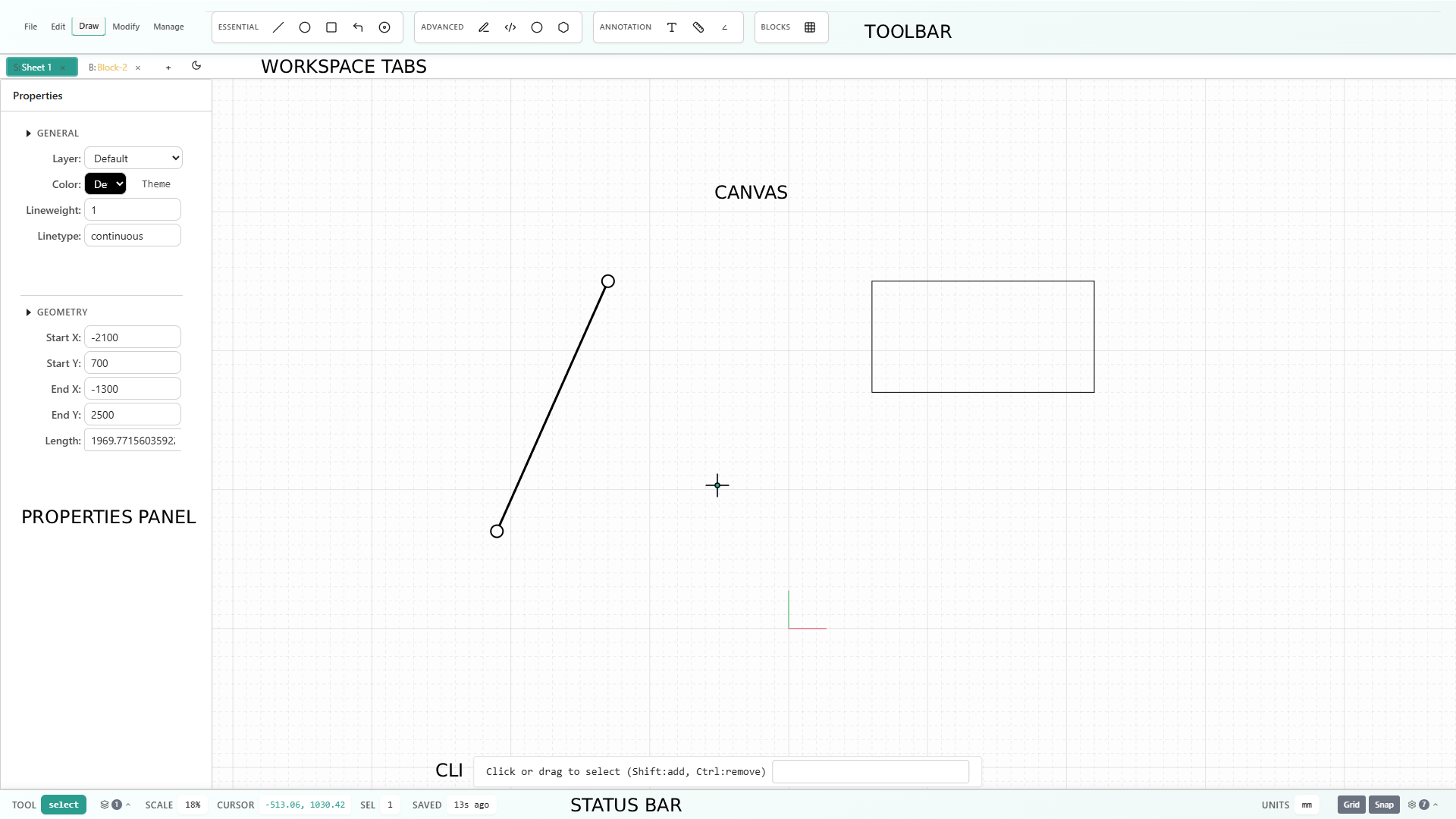
The workspace interface consists of the main canvas area, toolbar, properties panel, status bar, and command line interface. Each component serves a specific purpose in your drawing workflow.

Complete workspace interface with labeled components showing toolbar, canvas, properties panel on the left with selected line properties, status bar, and workspace tabs including block editor

The screenshot above shows a typical workspace with a line primitive selected. Notice how the Properties panel on the left displays the line's properties (start point, end point, length, etc.), and the workspace tabs at the top show both a sheet tab and a block editor tab, demonstrating the multi-workspace capability.

The canvas is the central drawing area where you create and edit geometry. The toolbar at the top provides access to drawing tools, modify operations, file commands, and management functions, organized into tabs: File, Edit, Draw, Modify, and Manage.

The Properties panel on the left shows editable fields for the selected primitive or default values when nothing is selected. The Status bar at the bottom displays real-time information including the active tool, cursor coordinates, zoom level, selection count, and snap settings.

The Command Line Interface (CLI) at the bottom allows you to type commands directly, with autocomplete suggestions. The Workspace tabs at the top let you switch between multiple sheets and block editors, with each workspace opening in its own tab.

Basic Concepts

Understanding primitives, blocks, sheets, layers, and the parametric system is essential for effective use of the workspace. These concepts form the foundation of how the workspace organizes and manages your drawings.

Primitives are the basic drawing elements: lines, circles, rectangles, arcs, ellipses, polylines, splines, text, dimensions, and more. Each primitive has properties like position, size, color, lineweight, and linetype that you can edit.

Blocks are reusable collections of primitives that can be inserted multiple times. Each block instance can have different parameter values, enabling parametric design. Blocks can have multiple states and use formulas to compute values dynamically.

Sheets are independent drawing workspaces within a document. Each sheet has its own layers and primitives. You can have multiple sheets open simultaneously in separate tabs.

Layers organize primitives into logical groups. You can show or hide layers independently, making it easier to work with complex drawings. Each primitive belongs to one layer.

The parametric system allows you to create blocks with parameters and variables that control geometry. Parameters are inputs you set per instance, while variables are computed values derived from formulas. You can inject these values into geometry properties using the injection button (↯) in the Properties panel or by typing curly-brace syntax like {Length}.

First Steps Tutorial

Follow these steps to create your first drawing in the workspace. This tutorial covers the essential workflow: creating geometry, selecting and modifying it, and saving your work.

  1. Open or create a sheet: Click the "+" button in the workspace tabs to create a new sheet, or open an existing document.
  2. Draw a shape: Click the Draw tab in the toolbar, then select a tool like Line or Circle. Click on the canvas to place points. For a circle, click once for the center, then drag or click again to set the radius.
  3. Select the shape: Click on the primitive you just created. You'll see grips (handles) appear that you can drag to modify the geometry.
  4. Edit properties: With the shape selected, look at the Properties panel on the left. You can change values like color, lineweight, or precise coordinates. Changes apply when you press Enter or click away from the field.
  5. Move the shape: Select the shape, then choose Move from the Modify tab. Click a base point, then click a destination point. Alternatively, drag the shape using its grips.
  6. Save your work: Click File → Save Document to save your drawing. The status bar shows when your work was last saved.

Tip: Enable object snaps in the Status bar to make precise connections between geometry. The snap settings dropdown lets you choose which snap types are active.